
Wi-Fi Frame Capture on Samsung Devices (S24/S25) in Monitor Mode
Samsung Galaxy devices can capture Wi‑Fi frames in monitor mode without root access or special permissions. Here's how to enable it on the S24/S25, run a capture, and find the resulting packet file — handy for Wi‑Fi debugging, packet analysis and troubleshooting straight from your phone.
How to enable Wi-Fi capture
- Go to Settings > Connections > Wi-Fi.
- Tap the three-dot menu and select Intelligent Wi-Fi.
- Tap Intelligent Wi-Fi five times quickly to enable Connectivity Labs.
- Navigate to Connectivity Labs > Wi-Fi Developer Options > Wi-Fi Packet Log for Debugging.
- Enable Air Log Capture.
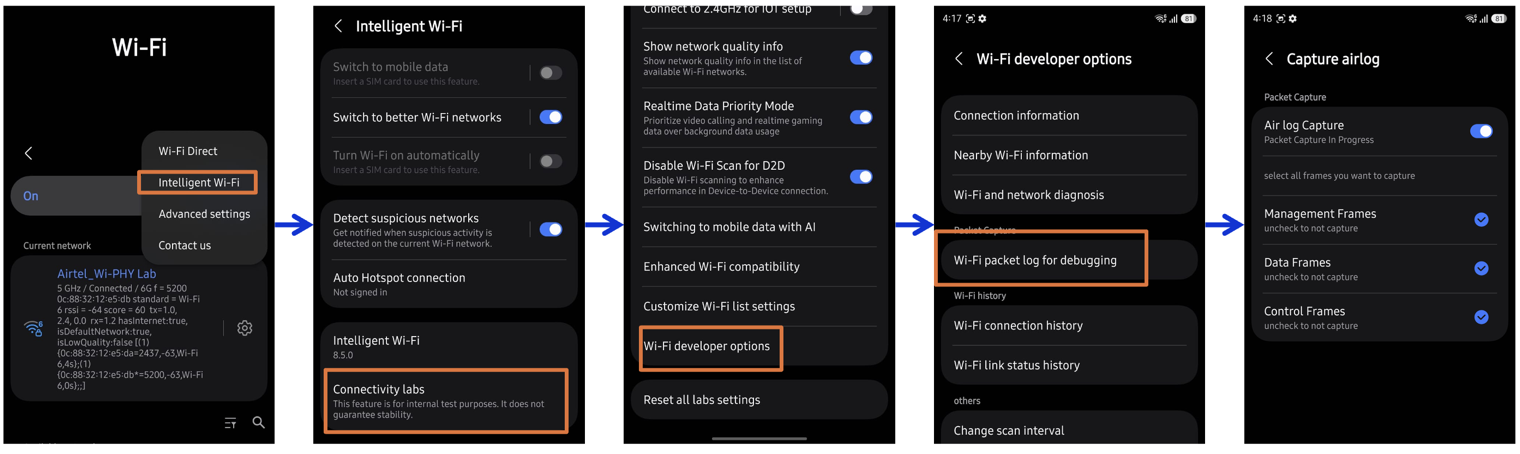
How to start a capture
- Open the Phone app.
- Dial
*#9900#. - Select Run dumpstate/logcat.
- The capture runs for approximately 1 minute and 45 seconds.
- Once complete, select Copy to SDCard.
Where to find the capture file
Navigate to:
My Files > Internal Storage > log > tcpdump
Your packet capture file will be available in this directory, ready to open in Wireshark or any analyzer.
Why this is useful
Capturing 802.11 frames usually means a dedicated adapter in monitor mode or a rooted device. Being able to grab an over-the-air capture from a stock Samsung phone — no root, no extra hardware — makes quick Wi‑Fi debugging, packet analysis and field troubleshooting far more accessible.
— Gopi Raga